On the Structure of (object oriented) Code Solutions: Onion Architecture

Navigate through the wild world of C# (.NET, .NET Core) and Java solutions in your organization or the public GitHub repositories. It’s like wandering into a virtual jungle, where things can get pretty wild in there. You’ll stumble upon projects and folders with names that seem to have been chosen explicitly to confuse a new developer. Some of them are packed neatly inside folders, while others seem to have escaped and gone rogue. It’s a real party of chaos and creativity out there! You’ll find some brave souls attempting to establish order with their conventions. Some try to divide the solution to BusinessLogic, DataLayer, and “Shared”…but then we see some”BuisnessLogic.Shared” or “DataLayer.BusinessLogik” sitting somewhere around…

All of these have been and still are confusing for me. I wanted something clear and simple, and during the last four years, I have come up with a structure which, at least from my experience, is not only beautiful and simple but also helpful: It assists new developers in finding their way in the solution. I could use this structure for a wide variety of solutions: Classic Sql based MVCs, modern NoSql based micro services, and even a chatbot based on the Microsft Botframework! Let me explain how it looks like.

My starting point has been the great idea known as the “Onion Architecture” from Jeffrey Palermo. I always start my solution with a “common” project:

The Common One

All those helping classes and methods (which are not specific to any project) go in there. An example from asp.net core is my ExceptionExtensions class, where I have my string GetExceptionDump() method, and use it for logging all the time.

So why I do not create a nugget package and add it to the company’s feed and use that through all projects, you might ask? Because I want and love the flexibility. If some developer working on the project feels that the GetExceptionDump() method should accept a Boolean as input to control whether or not to include the whole stack trace in the returning string, it is fine. She just goes ahead and adds the new method to the ExcpetionExtensions class in the common project! No need to discuss with other teams which use the same common (nugget) package in their projects, and no need to convince the team responsible for maintenance of the common package, if there is any such team!

The Core One

The next project will be the core project, with only one project dependency, the Common, of course. It is important that we keep it this way. The core project remains independent of all other projects, besides the Common one. But what happens in the Core?

I am going to solve the main problem(s) here, while remaining independent (from everything like the specific type of database we decided to use, the secret vault service my company currently uses, and so on). That is, I add all sort of interfaces to the core, but only interfaces: An IRepository<Product>, another IKeyVault, another IFileStore, and maybe an ITranslateText and an IEmailService. Depending on the context and needs, I see what I need to be able to get the results. As mentioned, I only add the interfaces in the core project. For the main problem(s), I add the interfaces and I implement them, using the other interfaces: I get the ProductId as input, use the IRepository<Product> to get the product from the database, without being specific about how and why…then I do some other checks or calculations, probably using methods form other interfaces, maybe I need to save something back in the db using the IRepository again, and return the final result at the end. Remember that we get the implementation of each interface in the runtime using DI (dependency injection).

The Database One

Ok, so let us start with the “other” things…one of them is often the data base. I said I add the IRepository kind of interfaces in the core and use them in the implementation of my main services there. Now I add a project called DataBase, which has the Core as it’s dependency, and I implement the IRepository for the kind of database that we are going to use in it. In .Net Core, if we want to use the EF, I add the appropriate dbcontext classes here too.

The Other Ones

You need to communicate with another API in your company or from your client to send or receive data? Add the IOurCustomerApiClient to the Core, and implement it in its own project. You need to use Azure Blob Storage or Azure KeyVault? Same story. I put all Azure things (besides the database ones) in an AzureServices project. All these projects are only dependent on the core project.

The ApiBase One

Quite often we need more than one api for the solution, more about it below. To avoid writing the same code, like the MiddleWares, I’ll add an ApiBaseProject. It depends on all of the “Other Ones”.

The Api Ones

Finally we add some ways for others to use our main services. The “Api” projects are exactly for this purpose. They depend on the ApiBase project. I often realized that it is better to have more than one of them:

  • One for triggering and monitoring the long running tasks.
  • One for serving the SPA/UI designed only for the administrators.
  • One for serving the SPA/UI designed only for the normal users.

This allows to have separate CI/CD pipelines and deployment routines.

Please tell me your opinion about the above mentioned structure, and how you structure your code.
Install/Deploy KeyCloak Standalone Server on Azure App Service (No Docker)

There are so many posts about deploying KeyCloak on Azure App Service, inside a docker container. But recently I wanted to install it on Azure App Service “bare metal”, (as bare as it gets on an Azure App Service!) i.e. without using docker. Here is what I discovered and did to get it up and running.


First some useful links about KeyCloak and Wildfly:


Here is a summary of what I have done:

Azure: Get an App Service and SQL Database

This is the most straightforward part to perform. Just go to the Azure Portal and get a Web App with runtime stack “Java” (I chose version 11) and Java web server stack “Java SE Embedded Web Server”. I feel more comfortable using Java on Linux, so I chose Linux as the OS.

For the Database, I bought the cheapest variant of Azure SQL Database. In the Firewall configurations, I made it accessible for Azure components.

KeyCloak: Download and Configure

I then downloaded the standalone server distribution version of KeyCloak and unpacked the content in my computer. As I wanted to be able to track my configuration changes in a git repository and, furthermore, create Azure DevOps pipelines for installing KeyCloak later, I created a git repository and pushed the contents of the KeyCloak Server to it.

I used Visual Studio Code (VS Code) with git and Azure Extensions.

Enable Remote Access

The first configuration change I performed was to enable remote access to Wildfly. To achieve that, I opened the stanalone.xml file (under the standalone/configuration) and changed the interface section as follows:

<interfaces>
        <interface name="management">        
            <any-address/>
        </interface>
        <interface name="public">
            <any-address/>
        </interface>
</interfaces>

I committed the change and moved on to the next step: It is necessary to enable the “proxy-address-forwarding”. So I added proxy-address-forwarding=”true” to the default http-listener, and committed this too:

<subsystem xmlns="urn:jboss:domain:undertow:10.0" default-server="default-server" default-virtual-host="default-host" default-servlet-container="default" default-security-domain="other" statistics-enabled="${wildfly.undertow.statistics-enabled:${wildfly.statistics-enabled:false}}">
            <buffer-cache name="default"/>
            <server name="default-server">
                <http-listener name="default" socket-binding="http" redirect-socket="https" enable-http2="true" read-timeout="30000" proxy-address-forwarding="true"/>
            ...

Taking Care of the MSSQL Database JDBC Driver

Next step was the JDBC driver for MSSQL. I navigated to the modules/system/layers/keycloak/com and created three new nested folders microsoft/sqlserver/main. I then downloaded the Microsoft JDBC Driver for SQL Server inside the main folder above. Having the driver rest in place, I created an XML file inside the main folder and named it “module.xml”. The content of this XML file should be like this:

<?xml version="1.0" ?>
<module xmlns="urn:jboss:module:1.5" name="com.microsoft.sqlserver">
    <resources>
        <resource-root path="mssql-jdbc-8.4.1.jre11.jar"/>
    </resources>

    <dependencies>
        <module name="javax.api"/>
        <module name="javax.transaction.api"/>
    </dependencies>
</module>

(Change the “path” attribute of the resource-root according to the version you have downloaded.)

I needed to register that driver in the standalone.xml file, under the drivers section as follows:

<driver name="sqlserver" module="com.microsoft.sqlserver">
                        <driver-class>com.microsoft.sqlserver.jdbc.SQLServerDriver</driver-class>
                        <xa-datasource-class>com.microsoft.sqlserver.jdbc.SQLServerXADataSource</xa-datasource-class>
                    </driver>

Finally, I added a <datasource> that uses my brand new “sqlserver” driver under the datasources section of the standalone.xml file. There is one with jndi-name=”java:jboss/datasources/KeycloakDS” which is for the default “h2” driver. I just replaced it with a new one:

                <datasource jndi-name="java:jboss/datasources/KeycloakDS" pool-name="KeycloakDS" enabled="true" use-java-context="true">                    <connection-url>jdbc:sqlserver://[YOUR DB SERVER].database.windows.net:1433;DatabaseName=[YOUR DB NAME];</connection-url>
                    <driver>sqlserver</driver>
                    <security> 
                        <user-name>[USER NAME]</user-name>
                        <password>[PASSWORD]</password>
                    </security>
                    <validation>
                        <background-validation>true</background-validation>
                        <background-validation-millis>30000</background-validation-millis>
                    </validation>
                </datasource>

Once again, I committed my changes.

Deploy using VS Code

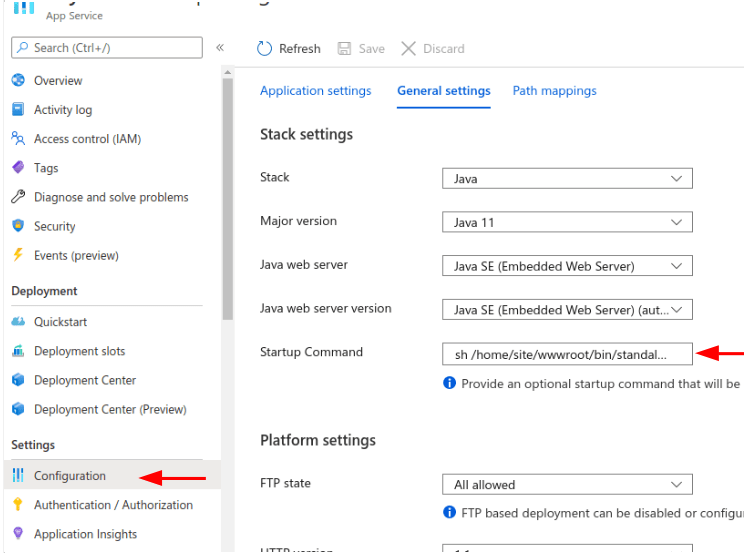
As mentioned above, I used Visual Studio Code (VS Code) with git and Azure App Service Extension. The deployment using the Azure App Service extension was straightforward: First of all, I set the startup command:

sh /home/site/wwwroot/bin/standalone.sh

I did it in Azure Portal, in the configuration section of the App Service:

Then, in VSCode, I logged in to my Azure account (using the command pallet issuing “azure: sign in”). Then, again using the command pallet I issued “azure: app service deploy to web app”. VS Code asked me to choose the directory I want to deploy, the Azure subscription, and the Web App I wanted to deploy KeyCloak to it. It took some minutes until all contents uploaded to Azure App Service (under /home/site/wwwroot/), and it took several minutes until the startup command finished the initialising of the database and started KeyCloak. I could follow the steps using Log stream, which is accessible through the Azure Portal or by using the Azure CLI command “az webapp log tail“.

Deploy using Azure DevOps

To deploy uisng build/release pipelines of azure DevOps, I first created a build pipeline, based on my git repository and branch, containing four tasks:

Copy files to staging folder: The goal is to copy just what is needed for the application to run, nevertheless keep the rest in the repository for future testing and references. For example, the folder “docs” contains some examples you may want to keep in the repository, but they are not needed for the deployment. I wanted to copy the necessary contents in a folder, let us call it “target”. It is then easy to clean and avoid publishing unnecessary files, as we shall see later. Here is the yaml representation of my copy task:

steps:
 task: CopyFiles@2
 displayName: 'Copy files to staging folder'
 inputs:
 SourceFolder: '$(system.defaultworkingdirectory)'
 Contents: |
  *.jar
  *.txt
  *.xml  
  bin/**
  modules/**
  standalone/**
  themes/**
  welcome-content/**
 TargetFolder: '$(build.artifactstagingdirectory)/target/'
 CleanTargetFolder: true
 condition: succeededOrFailed() 

Next is archive: The goal is to create a zip file, to be used for deployment later, based on the contents of the folder “terget”, but outside of it:

steps:
 task: ArchiveFiles@2
 displayName: 'Archive $(build.artifactstagingdirectory)/target/'
 inputs:
 rootFolderOrFile: '$(build.artifactstagingdirectory)/target/'
 includeRootFolder: false 

Notice that the “includeRootFolder” is set to false. Otherwise a folder called “target” will be created under the “home/site/wwwroot/” on the Azure App Service and the Keycloak contents will be extracted under that “target” folder after deployment.

Then Delete: Now I could easily remove the whole “target” folder, as its content are already archived in my zip file in the previous task:

steps:
 task: DeleteFiles@1
 displayName: 'Delete files from $(build.artifactstagingdirectory)/target/'
 inputs:
 SourceFolder: '$(build.artifactstagingdirectory)/target/'
 Contents: '*'
 RemoveSourceFolder: true 

Finally publish:

steps:
 task: PublishBuildArtifacts@1
 displayName: 'Publish Artifact: drop'
 inputs:
 PathtoPublish: '$(build.artifactstagingdirectory)'
 condition: succeededOrFailed() 

Now that I have published a clean, deploy ready zip file, I can create a release pipeline, containing an “Azure App Service Deploy” task to deploy it:

steps:
 task: AzureRmWebAppDeployment@4
 displayName: 'Azure App Service Deploy: <appname>'
 inputs:
 azureSubscription: <myazuresubscrp>
 appType: webAppLinux
 WebAppName: <appname>
 RuntimeStack: 'JAVA|11-java11'
 StartupCommand: 'sh /home/site/wwwroot/bin/standalone.sh' 

Create the Admin User

Finally, I needed to create an initial administrator user, see this. I decided to ssh to the App Service and run the bin/add-user-keycloak.sh command. To do that, I installed the Azure CLI and then issued the command:

az webapp ssh --name <appname> --resource-group <azurerg>

to open an ssh connection to the App Service. Then:

sh /home/site/wwwroot/bin/add-user-keycloak.sh -r master -u <admin user name> -p <password>

That was it. I hope it is useful to someone else too.

ASP.Net Core and IIS: Use web.config to authorize Users/AD Groups

As a very fast and dirty solution to the authorization problem for an internally used web application (developed using asp.net core 2.1), I could put the old web.config file to good use: to allow certain users, add the following section:

<system.webServer>   
    <security>
      <authorization>
        <remove users="*" roles="" verbs="" />
        <add accessType="Allow" users="domain-name\user1, domain-name\user2" />
      </authorization>
    </security>
  </system.webServer>

Similarly, to allow members of a certain AD group add the follwoing:

<system.webServer>   
    <security>
      <authorization>
        <remove users="*" roles="" verbs="" />
        <add accessType="Allow" roles="domain-name\group-name" />
      </authorization>
    </security>
  </system.webServer>

For more information, see here. Hope this helps someone!

From Local Video to Azure Media Services

I got the task of building a video streaming prototype based on the Azure Media Services the other day. All I had was a sample .mp4 video, and an azure Subscription for testing purposes, and of course the boundless ocean of knowledge, the internet. I gleaned information from Microsoft documentations, Stack Overflow, etc. and I am going to summarize my experience here, hoping it saves someone’s time in future:

Creating Azure Media Services on the Azure Portal is straightforward and fast. I used a dedicated resource group to better see what components are involved and how much they would cost during testing usage. The setup consists of three components:

Create a Service Principal for the Media Services and replace the contents of the appsettings.json of the sample UploadEncodeAndStreamFiles program (see the Microsoft Documentation, or get it directly from Github). To achieve this, I did the following in a Powershell:

az login

az account set --subscription ssssssss-ssss-ssss-ssss-ssssssssssss

az ams account sp create --account-name <MediaServiceName> --resource-group <YourResourceGroup>

In my case, the <MediaServiceName> is just “damedia”, the name I had chosen as I created the Media Services on the Azure Portal. The result of the last command is a json, which we can use as our appsettings.json directly:

{
  "AadClientId": "aaaaaaaa-aaaa-aaaa-aaaa-aaaaaaaaaaaa",
  "AadEndpoint": "https://login.microsoftonline.com",
  "AadSecret": "cccccccc-cccc-cccc-cccc-cccccccccccc",
  "AadTenantId": "bbbbbbbb-bbbb-bbbb-bbbb-bbbbbbbbbbbb",
  "AccountName": "damedia",
  "ArmAadAudience": "https://management.core.windows.net/",
  "ArmEndpoint": "https://management.azure.com/",
  "Region": "West Europe",
  "ResourceGroup": "<YourResourceGroup>",
  "SubscriptionId": "ssssssss-ssss-ssss-ssss-ssssssssssss"
}

Note: If you get the error

The subscription of 'ssssssss-ssss-ssss-ssss-ssssssssssss' doesn't exist in cloud 'AzureCloud'.

run:

az account clear
az login

and make sure you have chosen the correct account.

I just replaced the sample video ‘ignite.mp4’ with my video and started the program. It takes a while to complete, depending on the size and quality of the video, and generates the following logs in the console:

....
Job finished.
Downloading output results to 'Output\output-MySampleVideo-20200619-134744.mp4'...
Download complete.
-------------------------
locatorObject_name: locator-MySampleVideo-20200619-134744.mp4
-------------------------
-------------------------
streamingEndpointHostName: mediaservicename-euwe.streaming.media.azure.net
-------------------------
https://mediaservicename-euwe.streaming.media.azure.net/uuuuuuuu-uuuu-uuuu-uuuu-uuuuuuuuuuuu/MySampleVideo.ism/manifest(format=m3u8-aapl)
https://mediaservicename-euwe.streaming.media.azure.net/uuuuuuuu-uuuu-uuuu-uuuu-uuuuuuuuuuuu/MySampleVideo.ism/manifest(format=mpd-time-csf)
https://mediaservicename-euwe.streaming.media.azure.net/uuuuuuuu-uuuu-uuuu-uuuu-uuuuuuuuuuuu/MySampleVideo.ism/manifest
Done. Copy and paste the Streaming URL into the Azure Media Player at 'http://aka.ms/azuremediaplayer'.
Press Enter to continue.

In the Azure storage, we see now two new containers:

One of them contains the original video, uploaded by the program. The other one contains various copies of the video, with different sizes, each of which accompanied with an .mpi file, which Microsoft says are “intended to improve performance for dynamic packaging and streaming“…

Now I am ready to create a simple html file and embed an Azure Media Player in it:

<!DOCTYPE html>
<html lang="en-US">
<head>
    <meta charset="utf-8">
    <meta http-equiv="X-UA-Compatible" content="IE=edge">
    <title>Azure Media Player</title>
    <meta name="description" content="Test...">
    <meta name="viewport" content="width=device-width, initial-scale=1">

    <!--*****START OF Azure Media Player Scripts*****-->
        <!--Note: DO NOT USE the "latest" folder in production. Replace "latest" with a version number like "1.0.0"-->
        <!--EX:<script src="//amp.azure.net/libs/amp/1.0.0/azuremediaplayer.min.js"></script>-->
        <!--Azure Media Player versions can be queried from //aka.ms/ampchangelog-->
        <link href="https://amp.azure.net/libs/amp/2.3.5/skins/amp-default/azuremediaplayer.min.css" rel="stylesheet">
        <script src="https://amp.azure.net/libs/amp/2.3.5/azuremediaplayer.min.js"></script>
    
    <!--*****END OF Azure Media Player Scripts*****-->

</head>
<body>
    <h1>Sample: Introduction</h1>
    <h3>contact: john.doe@me.com</h3>

    <video id="azuremediaplayer" class="azuremediaplayer amp-default-skin amp-big-play-centered" tabindex="0"></video>
    <footer>
        <br />
        <p>© ME2020</p>
    </footer>

    <script>
        var myOptions = {
	"nativeControlsForTouch": false,
	controls: true,
	autoplay: true,
	width: "640",
	height: "400",
}
myPlayer = amp("azuremediaplayer", myOptions);
myPlayer.src([
        {
                "src": "https://mediaservicename-euwe.streaming.media.azure.net/uuuuuuuu-uuuu-uuuu-uuuu-uuuuuuuuuuuu/MySampleVideo.ism/manifest",
                "type": "application/vnd.ms-sstr+xml"
        }
]);
    </script>
</body>
</html>

The “src” link above is just the third link we get after running the console program. Open this html file in a web browser, et voila!!

Note: Make sure to use the latest version of the scripts by checking the Azure Media Player Releases web site.

Azure Key Vault: Transfer secrets using Powershell (Different Subscriptions)

Recently I had to copy more than 50 secrets (names and values) from one Azure KeyVault to another one. The two KeyVaults are on different subscriptions. Doing this manually is very tiresome and error prone. So I decided to do it in the right way…

Here is my favorite reference for Azure Powershell modules and commands.

So back to the work, first of all I imported the Az.KeyVault module:

Import-Module Az.KeyVault

Then I needed to login and connect to the Azure subscription containing the source KeyVault:

Connect-AzAccount -SubscriptionId 'ssssssss-ssss-ssss-ssss-ssssssssssss'

Having done that, I proceeded with running the Get-AzKeyVaultSecret module and saving the secret names in a list:

$sourceVaultName = "skv"
$targetVaultName ="tkv"
$secretNames = (Get-AzKeyVaultSecret -VaultName $sourceVaultName).Name

Now I could loop through these names, use Get-AzKeyVaultSecret again, and get the secret values. Note that the “disabled” secrets have null value. So I did a simple “null-check” before saving the name-value pairs in the final list:

$secretValuePairs = @()

foreach ($secret in $secretNames)
{
 
    $obj = [PSCustomObject]@{
        Name = $secret
        Value = (Get-AzKeyVaultSecret -VaultName $sourceVaultName -Name $secret).SecretValue
    }
       
    if ($obj.Value -ne $null) {
        $secretValuePairs += $obj
        Write-Host "$($obj.Name) : $($obj.Value)"
    }

}

Now all I had to do was, to change the subscription and import the secret key-value pairs to the destination KeyVault:

Connect-AzAccount -SubscriptionId 'tttttttt-tttt-tttt-tttt-tttttttttttt'

$secretValuePairs.foreach{
    Set-AzKeyVaultSecret -VaultName $targetVaultName -Name $_.Name -SecretValue $_.Value
}

This way I managed to transfer the secrets fast and mistake-free. I hope this saves someone’s time in future.

Java: Key store and pfx files

There is a Java-based web application in our company which is going to be extended to be able to communicate with a certain tax authority through an API. The tax authority issues a pfx file containing a key and a certificate and expects all API requests to contain the pfx (as base64 string) and its pin (the password for encrypting the pfx) in certain fields. The Java-based application uses a jks Java key store to store all kind of certificates and keys. The team has decided that the pfx should be stored in the key sore using Java Key Tool. The service responsible for communication with the tax authority then has to retrieve it and use it for the communication through the API. This is exactly what I am supposed to implement. Let’s start then.

Beside the Road: pfx files

A PFX file, is a password protected PKCS #12  archive. It contains the entire certificate chain plus the matching private keys.

Beside the Road: Java Keytool

The Keytool executable is distributed with the Java SDK. Here is a nice tutorial about it. I just add two commands for convenience below.

  • How to use keytool command to see what is inside a pfx or key store file:
keytool -v -list -storetype pkcs12 -keystore ("path to the pfx file")
keytool -v -list -storetype jks -keystore ("path to the jks file")
  • How to use keytool command to add a pfx to a key store
keytool -importkeystore -srckeystore ("path to the pfx file") -srcstoretype pkcs12 -destkeystore ("path to the jks file") -deststoretype jks -deststorepass ("the password of the jks")

First off, I noticed the pfx has been decrypted and its contents are added to the key store. So I need to somehow recreate the pfx as base 64 string. I use the “KeyStore Explorer” on Ubuntu as a graphical tool to examine jks as well as pfx files:

Please note that this is just a sample jks file. the real key store contains a lot of other keys and certificates…

Notice the two tiny locks in the above screenshot: these indicate that the entries in the key store are also locked.

Getting the content from the key store is easy. You just need to know what you are looking for, or rather, its alias. (Use the KeyStore Explorer or keytool -v -list as above to find out what is inside with their corresponding aliases.) Then just load the key store:

KeyStore keyStore = KeyStore.getInstance("JKS");

keyStore.load(new FileInputStream("keystore.jks"), KEYPASS.toCharArray());

Here KEYPASS is the so called pin or password for decrypting the key store. Now we can retrieve the two fellows as follows:

java.security.cert.Certificate[] chain1 = keyStore.getCertificateChain("encryptionkey");

java.security.cert.Certificate[] chain2 = keyStore.getCertificateChain("signaturekey");

PrivateKey key1 = (PrivateKey)keyStore.getKey("encryptionkey", KEYPASS_ORG_PFX.toCharArray());

PrivateKey key2 = (PrivateKey)keyStore.getKey("signaturekey", KEYPASS_ORG_PFX.toCharArray());

Notice how I am reading each alias once as a certificate chain and once as a key. To recreate the pfx file, I need them both. Notice also, to retrieve the key1 and key2 I have to know “KEYPASS_ORG_PFX”, the corresponding protection key from the original pfx.

What I am going to do next is, to create a protection parameter and two entries as the ingredients of my pfx file as follows:

KeyStore.ProtectionParameter protParam =
        new KeyStore.PasswordProtection(KEYPASS_NEW_PFX.toCharArray());

KeyStore.PrivateKeyEntry pkEntry1 =
        new KeyStore.PrivateKeyEntry(key1, chain1);

KeyStore.PrivateKeyEntry pkEntry2 =
        new KeyStore.PrivateKeyEntry(key2, chain2);

The KEYPASS_NEW_PFX is the key encrypting the entries of the newly created pfx file, which we can choose here (it has nothing to do with the key store password or the KEYPASS_ORG_PFX). I have to encrypt the entries, it is a requirement for the pfx to be accepted by the tax authorities. Having the ingredients, I just need to create a new Keystore object and add them to it:

KeyStore keyStorePfx = KeyStore.getInstance("PKCS12");

keyStorePfx.load(null, null);

keyStorePfx.setEntry("encryptionkey", pkEntry1, protParam);

keyStorePfx.setEntry("signaturekey", pkEntry2, protParam);

Finally, I need to write it to an OutputStream and convert it to base64 string:

ByteArrayOutputStream bs = new ByteArrayOutputStream();

keyStorePfx.store(bs, KEYPASS_NEW_PFX.toCharArray());

byte[] pfxBytes = Base64.getEncoder().encode(bs.toByteArray());

String pfxBase64 = new String(encoded);

I just used the same KEYPASS_NEW_PFX for encrypting the pfx. The resulting base64 string is written to the pfxBase64, ready to be used.